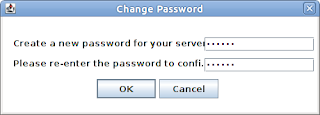
Ubuntu one is a free on line file sharing service offered by Canonical. The newly released ubuntu 9.10 has Ubuntu One tightly integrated with it. For using this service , you have to sign up with Ubuntu one. Click on this link and fill in the details to get a free account which can hold upto 2 GB. A mail will come to you mail account asking you to confirm the subscription.
Once you have completed the registration and confirmed , the ubuntu one account can be set up on your karmic koala desktop.
Click on Applications >> Internet and click Ubuntu One. The following window will pop up.
You can set the preferences for show icon ,connect on start and bandwidth.
The web browser will be launched and you will be taken the the launchpad website and asked to login. Once you login you will again be asked to confirm whether you want to add you computer to Ubuntu One. Once you agree, the Ubuntu one menu item will come under . See the picture below.
You can use this folder as any other normal folder on your computer.
This folder will be under your home directory. If you open a terminal and move to ~/ Ubuntu\ One/ folder, you can see the off-line contents on your hard disk. If you open the folder in nautilus, a special connect / disconnect button appears. You can use this to connect to the Internet and update your files on the Ubuntu one servers.
Thursday, October 29, 2009
Thursday, October 8, 2009
Time Synchronization using NTP on Ubuntu
Network Time Protocol is used for synchronizing time among different computers on a network. There are several public NTP servers from which you can request current time and synchronise your machines clock the that of the server. Let us look at how this can be done on ubuntu 9.04.
Select the configuration option Keep synchronized with Internet servers
You may get a dialog box informing you that NTP support has to be installed.
Click on Install NTP Support . The necesary files will be downloaded from the repository.
Once the download is complete Close the Time and Date pop up window. Run it once again from System->Administration-> Time and Date . You will get the following window.

Click on Select servers.

Put a tick mark on the selected server and close the window. The NTP client will start running depending on the configuration file /etc/ntp.conf. You can tweak this file for various time update options.
Click on System->Administration-> Time and Date
Click on unlock. You may have to enter your password to continue.
You may get a dialog box informing you that NTP support has to be installed.
Click on Install NTP Support . The necesary files will be downloaded from the repository.Once the download is complete Close the Time and Date pop up window. Run it once again from System->Administration-> Time and Date . You will get the following window.

Click on Select servers.

Put a tick mark on the selected server and close the window. The NTP client will start running depending on the configuration file /etc/ntp.conf. You can tweak this file for various time update options.
Labels:
ubuntu
Wednesday, October 7, 2009
Accessing remote computers via XDMCP
You can login to a remote computer via XDMCP if it is configured to allow XDMCP logins. I will explain how I did it on two Ubuntu machines running gdm.
Suppose you have two machines A and B ( In my case both are running ubuntu 9.04 , you can try this on other distros too.) They are connected via Ethernet and they are on the same network. (At my end, machine A had an IP address of 10.0.2.2 and machine B had an IP address of 10.0.2.1).
At machine A.
Open a terminal and run
$ sudo gdmsetup
You will get the following screen.
Select Remote tab.
Change the style tab from remote login disabled to same as local.
Close the window.
At machine B
Boot the machine and come to login screen. Click on options and select remote login via XDMCP. Wait for a moment you will see machine A in the list.
Select Machine A from the list and click on connect button. You will get login screen of machine A.
It is possible to login to remote machines on internet if you have good connectivity. You can add the host IP in the above box and connect to the remote machine to get the login screen.
Suppose you have two machines A and B ( In my case both are running ubuntu 9.04 , you can try this on other distros too.) They are connected via Ethernet and they are on the same network. (At my end, machine A had an IP address of 10.0.2.2 and machine B had an IP address of 10.0.2.1).
At machine A.
Open a terminal and run
$ sudo gdmsetup
You will get the following screen.
Select Remote tab.
Change the style tab from remote login disabled to same as local.
Close the window.
At machine B
Boot the machine and come to login screen. Click on options and select remote login via XDMCP. Wait for a moment you will see machine A in the list.
Select Machine A from the list and click on connect button. You will get login screen of machine A.
It is possible to login to remote machines on internet if you have good connectivity. You can add the host IP in the above box and connect to the remote machine to get the login screen.
Labels:
ubuntu
Tuesday, October 6, 2009
Downloading Ubuntu 9.10 beta with zsync
The ubuntu 9.10 beta iso images for various architectures are shipped along with zsync files for easy update of iso images from previous releases. This post will show how you can use zsync to save your bandwidth and time while you download the next version of the karmic koala.
zsync is a file transfer program similar to rsync. zsync is optimized for distribution of files across Internet, with one file on a server to be distributed to thousands of down loaders.
Recently ,I used zsync to update the iso image of karmic koala alpha6 to beta . This is what I did on my ubuntu Jaunty machine.
$ sudo apt-get install zsync
I had downloaded the alpha version of karmic koala and kept it as karmic-desktop-i386.iso in my home folder. For updating this image to the beta release I typed the following command.
$ zsync -i karmic-desktop-i386.iso http://releases.ubuntu.com/karmic/ubuntu-9.10-beta-desktop-i386.iso.zsync
The above command will read karmic-desktop-i386.iso from my hard disk and compare it with the ubuntu-9.10-beta-desktop-i386.iso on the ubuntu servers and update the local image to new version.
As per the release schedule for karmic, the release candidate and final release are expected on 22nd and 29th of October 2009. Get ready with zsync for updating your beta iso to the final .
( Ubuntu provides jigdo files which can also be used to update the image)
zsync is a file transfer program similar to rsync. zsync is optimized for distribution of files across Internet, with one file on a server to be distributed to thousands of down loaders.
Recently ,I used zsync to update the iso image of karmic koala alpha6 to beta . This is what I did on my ubuntu Jaunty machine.
$ sudo apt-get install zsync
I had downloaded the alpha version of karmic koala and kept it as karmic-desktop-i386.iso in my home folder. For updating this image to the beta release I typed the following command.
$ zsync -i karmic-desktop-i386.iso http://releases.ubuntu.com/karmic/ubuntu-9.10-beta-desktop-i386.iso.zsync
The above command will read karmic-desktop-i386.iso from my hard disk and compare it with the ubuntu-9.10-beta-desktop-i386.iso on the ubuntu servers and update the local image to new version.
As per the release schedule for karmic, the release candidate and final release are expected on 22nd and 29th of October 2009. Get ready with zsync for updating your beta iso to the final .
( Ubuntu provides jigdo files which can also be used to update the image)
Labels:
karmic koala,
ubuntu
Friday, September 18, 2009
Beating internet restrictions with ssh
In most of our schools and offices several websites are blocked. Most of these offices and schools are using a proxy server such as squid along with squidguard or danceguardian to achieve access restrictions on users. Most often, the sys admins forget to block internet traffic using other protocols such as ssh , ftp etc. You can beat the web filtering scheme of your network administrator if you can access a machine on internet via ssh. Open ssh server can act as a socks proxy.
So . install open ssh server on your home machine and leave it connected to internet. Note down the ipaddress of your home machine. If it uses DHCP , you can install some thing like dyndns client and keep track of the IP address. From your office/school connect to the home machine as below.
$ ssh -D 2345 ipaddress _of_home_machine
( You can use any other unused port no. instead of 2345. You may not be able to connect to home if the admin has blocked ssh port on the firewall. You can try running ssh server at home on a different port)
Open your firefox browser and select file=>preferences->advanced->network-settings. Fill in 127.0.0.1 against the Socks host column and enter 2345 as port. Click ok to save.
All your webtraffic will now be tunneled to your home machine beating the local proxy. Enjoy unrestricted internet.
So . install open ssh server on your home machine and leave it connected to internet. Note down the ipaddress of your home machine. If it uses DHCP , you can install some thing like dyndns client and keep track of the IP address. From your office/school connect to the home machine as below.
$ ssh -D 2345 ipaddress _of_home_machine
( You can use any other unused port no. instead of 2345. You may not be able to connect to home if the admin has blocked ssh port on the firewall. You can try running ssh server at home on a different port)
Open your firefox browser and select file=>preferences->advanced->network-settings. Fill in 127.0.0.1 against the Socks host column and enter 2345 as port. Click ok to save.
All your webtraffic will now be tunneled to your home machine beating the local proxy. Enjoy unrestricted internet.
Labels:
linux
Subscribe to:
Posts (Atom)